



Introduction
Have you ever experienced your SSH session disconnecting automatically after being idle for a few minutes? This can be frustrating, especially when you’re working on remote servers and need to maintain long-running connections.
In this guide, you’ll learn how to increase the SSH connection timeout in Linux to keep your remote sessions alive for longer periods. We’ll walk through the configuration process step by step with clear examples.
What is SSH Connection Timeout?
SSH connection timeout is the duration after which an idle SSH session automatically disconnects. By default, SSH servers terminate inactive sessions to free up resources and improve security. However, you can customize this timeout value based on your needs.
Understanding SSH Timeout Parameters
Before we modify the configuration, let’s understand the two key parameters that control SSH timeouts:
ClientAliveInterval
This parameter specifies the time (in seconds) that the server waits before sending a “keep-alive” message to the client. These messages ensure the connection remains active even when no data is being transmitted.
ClientAliveCountMax
This parameter defines how many keep-alive messages the server will send without receiving a response from the client. If the server doesn’t receive any response after sending this many messages, it will disconnect the session.
How Timeout is Calculated
The actual timeout value is calculated using this simple formula:
Timeout (in seconds) = ClientAliveInterval × ClientAliveCountMaxFor example:
- ClientAliveInterval = 1200 seconds (20 minutes)
- ClientAliveCountMax = 3
- Total Timeout = 1200 × 3 = 3600 seconds (1 hour)
Step-by-Step Guide to Increase SSH Connection Timeout
Follow these steps to configure SSH timeout on your Linux server:
Step 1: Access the SSH Configuration File
First, open the SSH daemon configuration file using your preferred text editor. You’ll need root or sudo privileges:
bash
sudo nano /etc/ssh/sshd_configOr if you prefer vim:
bash
sudo vim /etc/ssh/sshd_configStep 2: Locate the Timeout Parameters
Scroll through the file and find these two lines:
#ClientAliveInterval
#ClientAliveCountMax
They will likely be commented out (indicated by the # symbol at the beginning).
Step 3: Configure the Parameters
Remove the hash symbol (#) to uncomment the lines and set your desired values:
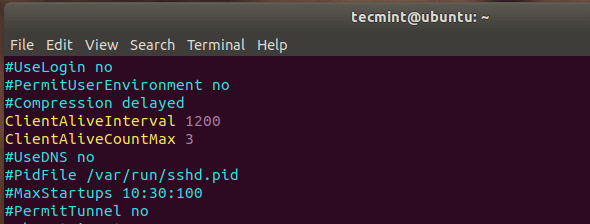
Option 1: Using Both Parameters
ClientAliveInterval 1200
ClientAliveCountMax 3
This configuration will:
- Send a keep-alive message every 1200 seconds (20 minutes)
- Send up to 3 messages without response
- Keep the session alive for 3600 seconds (1 hour) of idle time
Option 2: Using ClientAliveInterval Alone
For simplicity, you can set just the ClientAliveInterval parameter:
ClientAliveInterval 3600This will send a keep-alive message every 3600 seconds (1 hour), keeping the connection alive indefinitely as long as the client responds.
Step 4: Save the Configuration File
After making changes:
- In nano: Press
Ctrl + Oto save, thenCtrl + Xto exit - In vim: Press
Esc, type:wq, and pressEnter
Step 5: Reload the SSH Service
For the changes to take effect, reload the SSH daemon:
bash
sudo systemctl reload sshdAlternatively, you can restart the service:
bash
sudo systemctl restart sshdCommon Timeout Configuration Examples
Here are some practical examples for different use cases:
For Short Sessions (30 minutes)
ClientAliveInterval 600
ClientAliveCountMax 3
Timeout = 600 × 3 = 1800 seconds (30 minutes)
For Medium Sessions (2 hours)
ClientAliveInterval 1200
ClientAliveCountMax 6
Timeout = 1200 × 6 = 7200 seconds (2 hours)
For Long Sessions (4 hours)
ClientAliveInterval 1200
ClientAliveCountMax 12
Timeout = 1200 × 12 = 14400 seconds (4 hours)
Client-Side SSH Timeout Configuration (Optional)
You can also configure timeout settings on your local machine (SSH client). Edit your local SSH config file:
bash
nano ~/.ssh/configAdd these lines:
Host *
    ServerAliveInterval 1200
    ServerAliveCountMax 3
This ensures your client sends keep-alive messages to the server, preventing disconnection from the client side.
Important Security Considerations
While increasing SSH timeout improves convenience, keep these security points in mind:
- Don’t Set Extremely High Values: Very long timeout periods can pose a security risk. If you leave your terminal unattended, someone could potentially access your active session.
- Lock Your Screen: Always lock your computer screen when stepping away, regardless of your SSH timeout settings.
- Use Reasonable Values: Set timeout values based on your actual work patterns. For most use cases, 1-2 hours is sufficient.
- Consider Your Environment: In shared or public environments, use shorter timeout values for better security.
- Combine with Other Security Measures: Use SSH keys, disable root login, and implement firewall rules for comprehensive security.
Troubleshooting Common Issues
Changes Not Taking Effect
If your configuration changes don’t work:
- Check for syntax errors in the config file
- Ensure you reloaded/restarted the SSH service
- Verify you’re editing the correct config file (
/etc/ssh/sshd_confignotssh_config)
Connection Still Dropping
If connections still drop after configuration:
- Check if there’s a firewall or NAT device timing out connections
- Verify both server and client configurations
- Check system logs:
sudo journalctl -u sshd -f
Verifying Your Configuration
To check if your settings are active:
bash
sudo sshd -T | grep clientaliveThis command displays the current effective configuration for ClientAlive parameters.
Conclusion
Increasing the SSH connection timeout in Linux is straightforward and can significantly improve your workflow when working with remote servers. By configuring the ClientAliveInterval and ClientAliveCountMax parameters, you can prevent unwanted disconnections during idle periods.
Remember to balance convenience with security by setting appropriate timeout values for your environment. Don’t set the timeout too high, as this could create security vulnerabilities if someone gains physical access to your unlocked terminal.
Key Takeaways:
- Edit
/etc/ssh/sshd_configto configure server-side timeout - Use the formula: Timeout = ClientAliveInterval × ClientAliveCountMax
- Reload SSH service after making changes
- Consider security implications when setting timeout values
- Lock your screen when stepping away from your terminal
Related Topics
Related Read: How to Secure and Harden OpenSSH Server
For more advanced SSH security configurations, check out our comprehensive guide on hardening your OpenSSH server with best practices and security measures.
Need Help? If you have questions about SSH configuration or encounter any issues, feel free to leave a comment below! or reach out Author










Leave a Comment